How I Replaced Microsoft Access With an AI-Powered Invoice Workflow Using n8n
From hours of manual data entry to automated invoice processing
The Problem
For years, I managed my home business invoices using Microsoft Access. It worked — but barely.
Every invoice had to be manually entered using unique digit codes for each company and item. The codes had to be simple enough to type by hand, since there was no barcode scanning involved. One wrong digit and the whole record was wrong — not just cosmetically wrong, but wrong in a way that would quietly throw off totals weeks later when I least expected it.
Invoices piled up monthly, sometimes biannually. Processing a backlog could take many hours — sometimes days. It was exhausting, error-prone, and frankly, soul-draining.
I knew there had to be a better way. What I didn’t know yet was that “a better way” would mean teaching myself enough automation and AI to build one from scratch.
Why Not Just Buy Software?
Before writing a single workflow, I looked at off-the-shelf invoice processing tools. Most fell into two camps: simple OCR scanners that just dump text onto a page with no structure, or full accounting suites that wanted a monthly subscription to manage a problem that, for my volume, didn’t need an entire subscription product.
What I actually needed was narrower than either option: read a scanned invoice, understand which numbers were which (not just extract raw text), and drop the result into a spreadsheet I already knew how to work with. That gap — between “dumb OCR” and “expensive all-in-one software” — is exactly where a no-code automation tool plus an AI model turned out to fit.
The Architecture
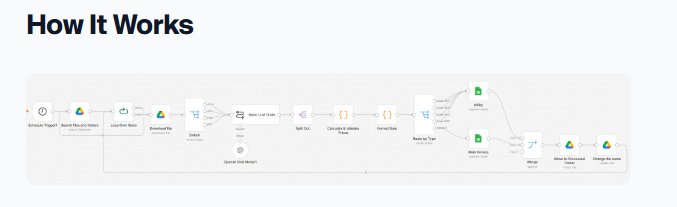 Figure: Automated invoice processing workflow built with n8n
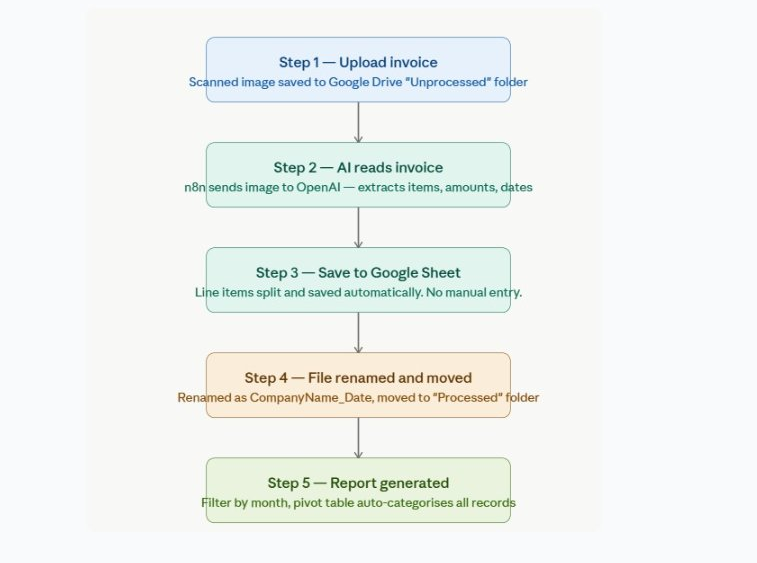
The workflow has five stages, and each one taught me something the tutorials don’t usually mention.
Step 1 — Upload. Scanned invoices land as image files in an “Unprocessed” folder in Google Drive. This is the only manual step left in the entire process.
Step 2 — AI Extraction. n8n watches that folder and, the moment a new file appears, sends the image to an AI language model with a prompt asking it to return structured data: company name, line items, amounts, and dates.
This step sounds simple in a sentence, but it’s where most of the real engineering happened. AI models don’t return clean data by default — they return text that looks like data, and the gap between those two things is where workflows quietly break. More on that below.
Step 3 — Split and Save. The extracted data gets split into individual line items and written into a Google Sheet automatically. No manual entry required — but also no blind trust either; the structure has to match what the spreadsheet formulas downstream expect, every single time.
Step 4 — File Management. Once processed, each invoice is renamed using a CompanyName_Date format and moved into a “Processed” folder. Small detail, but it’s what turns a folder of 200 ambiguously-named scans into something a human can actually search through six months later.
Step 5 — Reporting. A button in the Google Sheet filters records by month into a separate worksheet, and a pivot table categorizes everything automatically — ready for review anytime, without me touching a single formula.
The AI Model Decision — and the Problems Nobody Warns You About
Choosing the right AI model was a learning experience in itself, and not for the reasons I expected.
I started with OpenAI’s models, which handle image files like JPEG and JPG reliably. I also tried Anthropic’s Claude, which handles both images and PDFs well — genuinely well — but burned through credits noticeably faster for this particular use case. I looked at Google Gemini as a free alternative and hit rate limits before I’d even finished testing a single workflow run.
After weighing cost against capability, I settled on OpenAI for this specific workflow: invoice images, read and extracted reliably, at a cost that made sense for the volume I was processing.
But here’s the part that doesn’t show up in any tutorial: getting an AI model to return data is easy. Getting it to return data your code can actually use is the hard part.
A few specific problems I ran into, in case you’re building something similar:
-
AI models love markdown, even when you don’t ask for it. OpenAI’s responses frequently wrapped the JSON output in markdown code fences — three backticks and the word “json” — even when the prompt explicitly asked for raw JSON. Feed that straight into a JSON parser and it fails. The fix was a simple string-cleanup step before parsing: strip the markdown fencing, trim whitespace, then parse.
-
Where the actual data lives in the API response is not consistent across providers. If you ever switch models — say, from OpenAI to Claude, or to an n8n LLM Chain node — the path to the extracted text changes too. Code written for one provider will silently fail (or worse, silently return the wrong field) if you swap models without updating that one line.
-
n8n’s HTTP request helper doesn’t behave the way you’d assume. When you use it to call an API directly, it already returns a parsed object — not a raw string. Adding a
JSON.parse()on top of that, which feels like the “safe” thing to do, actually breaks the workflow. The fix is to use the response as-is.
None of these are difficult problems once you know about them. But each one cost me real debugging time precisely because the failure wasn’t loud — the workflow would just quietly produce wrong or empty data, which is far more dangerous in a financial record than a workflow that crashes outright.
Later on, when I built a separate workflow for bank statement reconciliation, I’d end up using a different AI model entirely for that task, since OpenAI doesn’t natively handle PDFs the way Claude does. That’s the real lesson buried in all of this: there’s no single “best” model. There’s only the right model for the specific input you’re feeding it, and figuring that out takes actual testing, not just picking whatever’s cheapest or most hyped.
Where the Spreadsheet Fights Back
The AI extraction was only half the battle. The Google Sheet on the receiving end had its own set of landmines.
Pivot tables, by default, only cover the data range you give them at setup. If you scope that range to exactly how much data exists today, every new invoice added next month falls outside the range and silently disappears from the reports — no error, no warning, just numbers that don’t add up to what they should. The fix was to deliberately over-scope the range from the start (think rows numbered in the thousands, even when you only have a few hundred), so future growth is already accounted for.
Dates caused a different kind of headache. JavaScript’s date parsing assumes American date order (month/day/year) by default, which means a date written the normal Singapore way — day/month/year — gets silently misread. A date like 3 April becomes April 3rd reads fine, but a date like 4/3 becomes ambiguous, and the code will guess wrong roughly half the time. That one required writing manual date-parsing logic rather than trusting the built-in date functions.
Neither of these is an “AI” problem. They’re the kind of detail that separates a workflow that works in a demo from one that works for years without anyone noticing it’s broken.
The Result
What used to take hours — sometimes a full day for a backlog — now takes minutes from upload to a categorized entry in the spreadsheet. The records are consistent, the files are organized automatically, and a month-end report is one button click away instead of an afternoon of manual sorting.
Most importantly: no more soul-draining manual entry, and no more single-digit typos quietly corrupting a month’s worth of records.
What I Learned
Building this taught me that you don’t need to be a professional developer to solve a real business problem with AI. You need curiosity, patience, and a willingness to debug the same workflow five times in one evening until it finally behaves.
It also taught me something less obvious: the AI model is rarely the part that breaks. It’s the unglamorous plumbing around it — parsing responses correctly, scoping spreadsheet ranges generously, handling dates the way your country actually writes them — that determines whether a workflow survives contact with real, messy data.
If a part-time teacher from Singapore with no computer science background can build this, you probably can too.
A Word of Caution
AI is powerful but not perfect. Don’t expect 100% accuracy on every invoice — handwritten notes, poor scan quality, or unusual formats can still confuse the model. Manual inspection of the extracted data is still a required step before finalizing your records.
But that’s not the same as saying the AI didn’t help. Think of it this way: instead of spending three hours entering data manually, you now spend a fraction of that reviewing and correcting what the AI already extracted. That’s still a massive net gain — you’ve changed your role from data-entry clerk to quality-control reviewer, which is a far better use of an afternoon.
AI is your assistant, not your replacement for human judgment.
— KW